More patient time.
Less copy-paste.
Push reviewed IntuScribe notes into supported EHR fields with our Chrome extension—without the copy-paste routine.
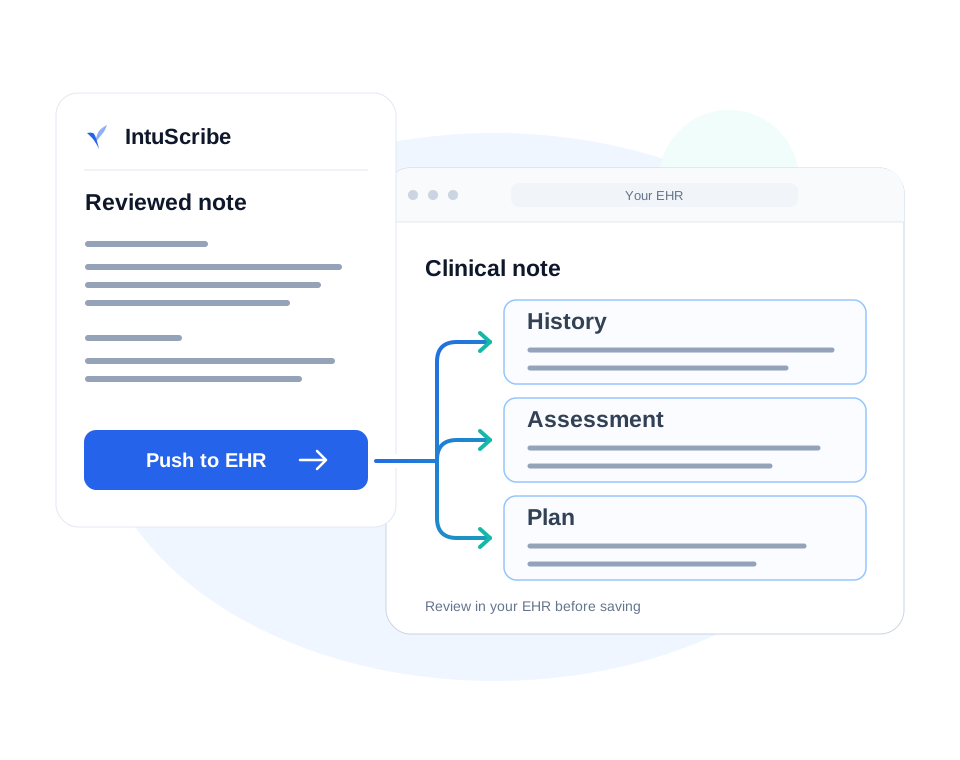
Record. Review. Push.
One click to push your reviewed note into supported browser-based EHR fields.
Record
Capture with consent.
Review
Check and edit your draft.
Push & save
Push to supported fields. Check patient and fields; save in your EHR.
Push may replace existing field content immediately. Back up first; check after.
How does the IntuScribe Chrome extension work?
Its AI intelligence layer analyses your clinical note and the available fields in your browser-based EHR, then matches relevant content to the corresponding sections.
Can IntuScribe push notes into sections such as History and Assessment?
Yes. Where supported fields are detected, IntuScribe matches note content to sections such as History, Assessment and Plan, rather than pasting the whole note into one field.
How do I install the IntuScribe Chrome extension?
Open the official store listing in desktop Chrome and choose Add to Chrome. Review permissions, pin IntuScribe and sign in with your IntuScribe account.
Does the extension work with every EHR or EMR?
No. Test your exact note screen. Restricted pages, embedded editors and desktop-only software may not support transfer. This is browser field transfer, not a vendor partnership or certified native integration.
Does Push to EHR automatically save or sign the clinical record?
No. Push to EHR inserts text; it does not save or sign the encounter. Confirm the patient, review every field and save in your EHR. A success message does not confirm a saved record.
Can pushing a note overwrite existing text?
Yes. Transfer can replace existing field content. Preserve text you need before pushing, then check the result.
What if the note does not transfer correctly?
Use Copy All or Copy Note to paste the reviewed note manually. Check the destination fields before saving.
What precautions should a clinician take when testing the Chrome extension?
• Start safely: test with non-patient data. • Check access: review Chrome permissions and allow microphone access for recording. • Follow practice policies: obtain consent and follow privacy requirements. Connected services process transcription and notes; field discovery may send EHR field labels and page metadata to IntuScribe. • Before pushing: confirm the patient and destination, and back up existing text. • Before signing off: check every transferred section for accuracy and completeness, correct any errors, then save and sign off in your EHR. The extension does not save or sign for you.